

Terrain Sculpt
Shape the ground with Sculpt: raise hills, dig valleys, level platforms and cut terraces. It works like a brush: click and drag on the ground. Then paint it and add water.
- Click Sculpt in the bottom toolbar.
- Drag across the ground to raise a hill.
- Pick Lower and drag beside it to dig a valley.
The brush
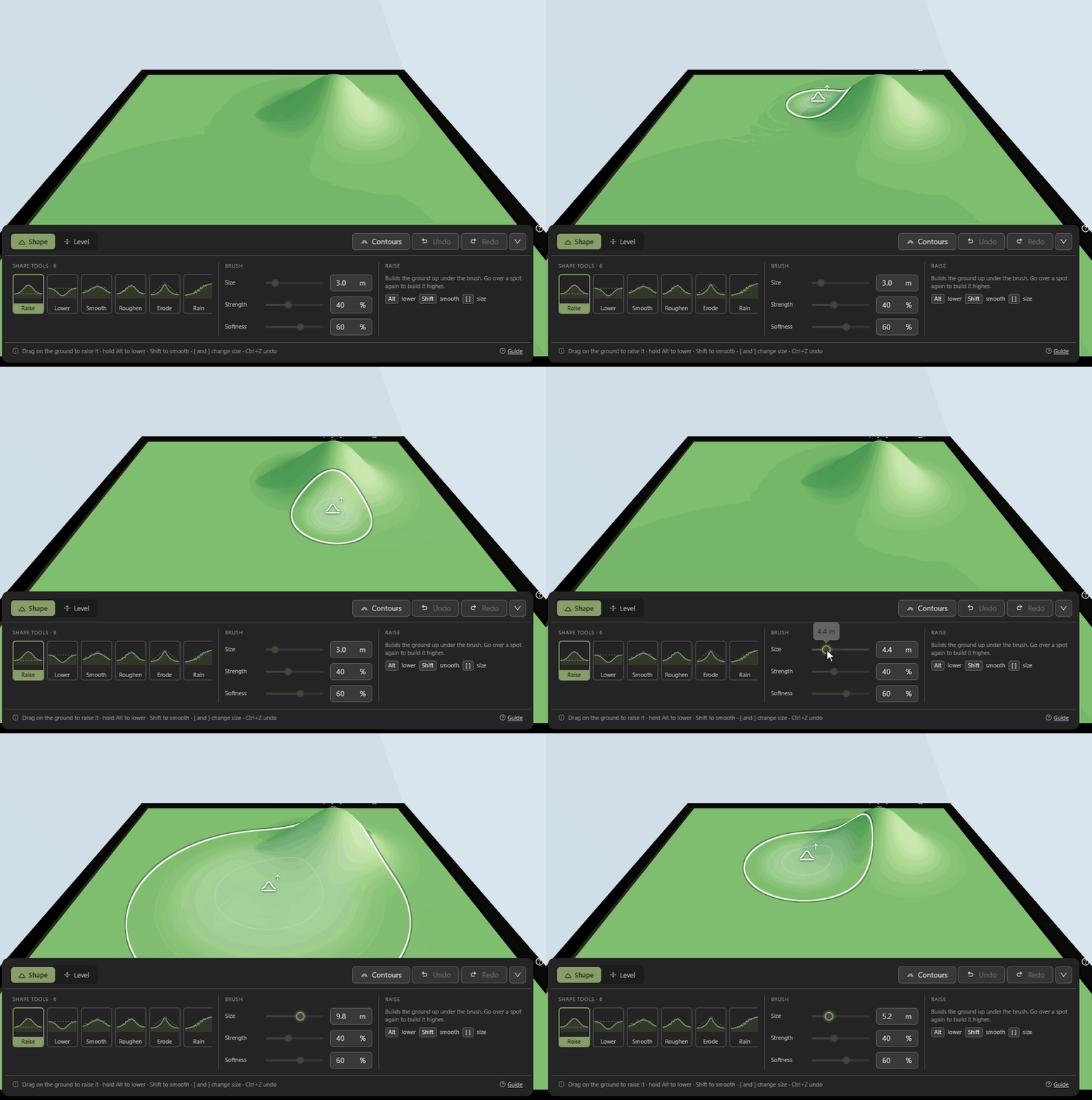
- Sculpt has two tabs of tools. Shape builds and weathers the ground; Level makes it flat, sloped or stepped.
- Size is the brush's width in metres, the same for every tool. [ and ] make it smaller and bigger.
- Strength sets how much each pass does, and Softness how gently it fades at the edge. Each tool remembers its own.
- The circle shows the brush's size and fade. The icon in the middle shows which tool is active.
Raise hills and dig valleys
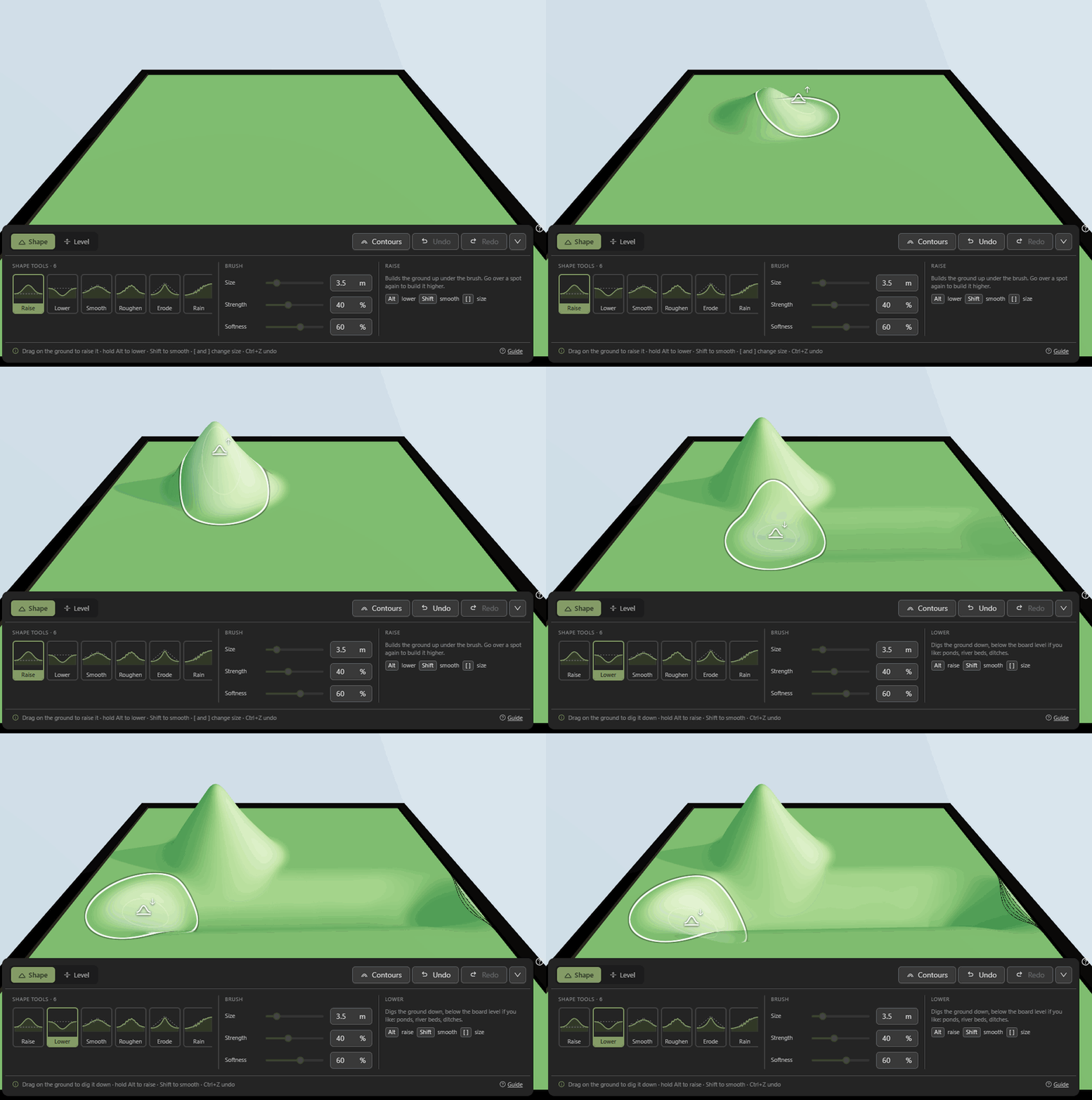
- Raise: drag to build the ground up. Go over it again to go higher. Hold the brush still to keep building.
- Lower: drag to dig. You can dig up to 5 m below the board, for ponds, river beds and ditches.
- Hold Alt to swap them: Raise digs and Lower builds, for as long as you hold it.
Natural detail
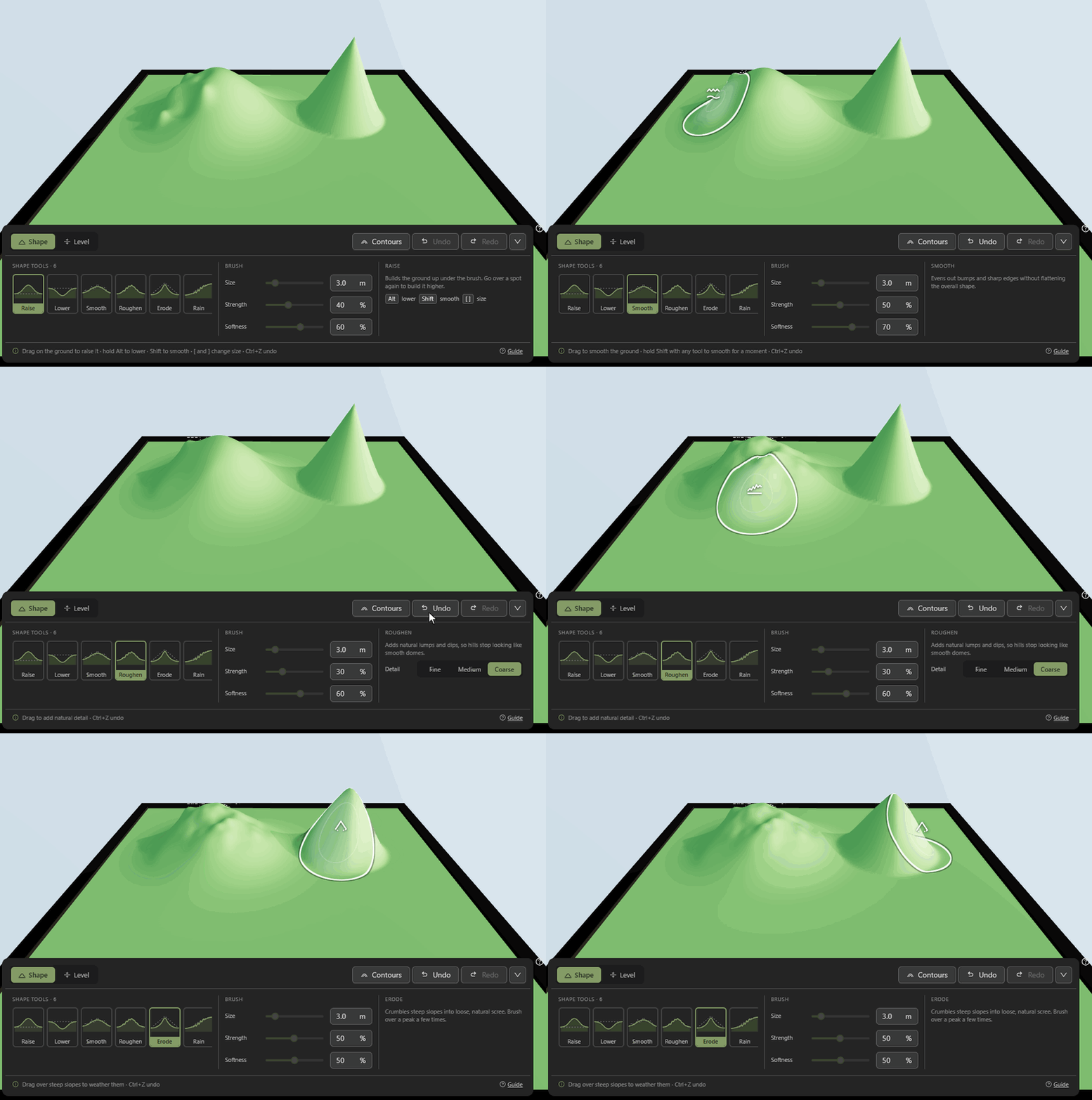
- Smooth evens out bumps and sharp edges but keeps the overall shape. Hold Shift with any tool to smooth for a moment.
- Roughen adds lumps and dips, so hills stop looking like smooth domes. Detail sets how big they are.
- Erode crumbles steep slopes into loose scree. Brush over a peak a few times.
Gullies with Rain
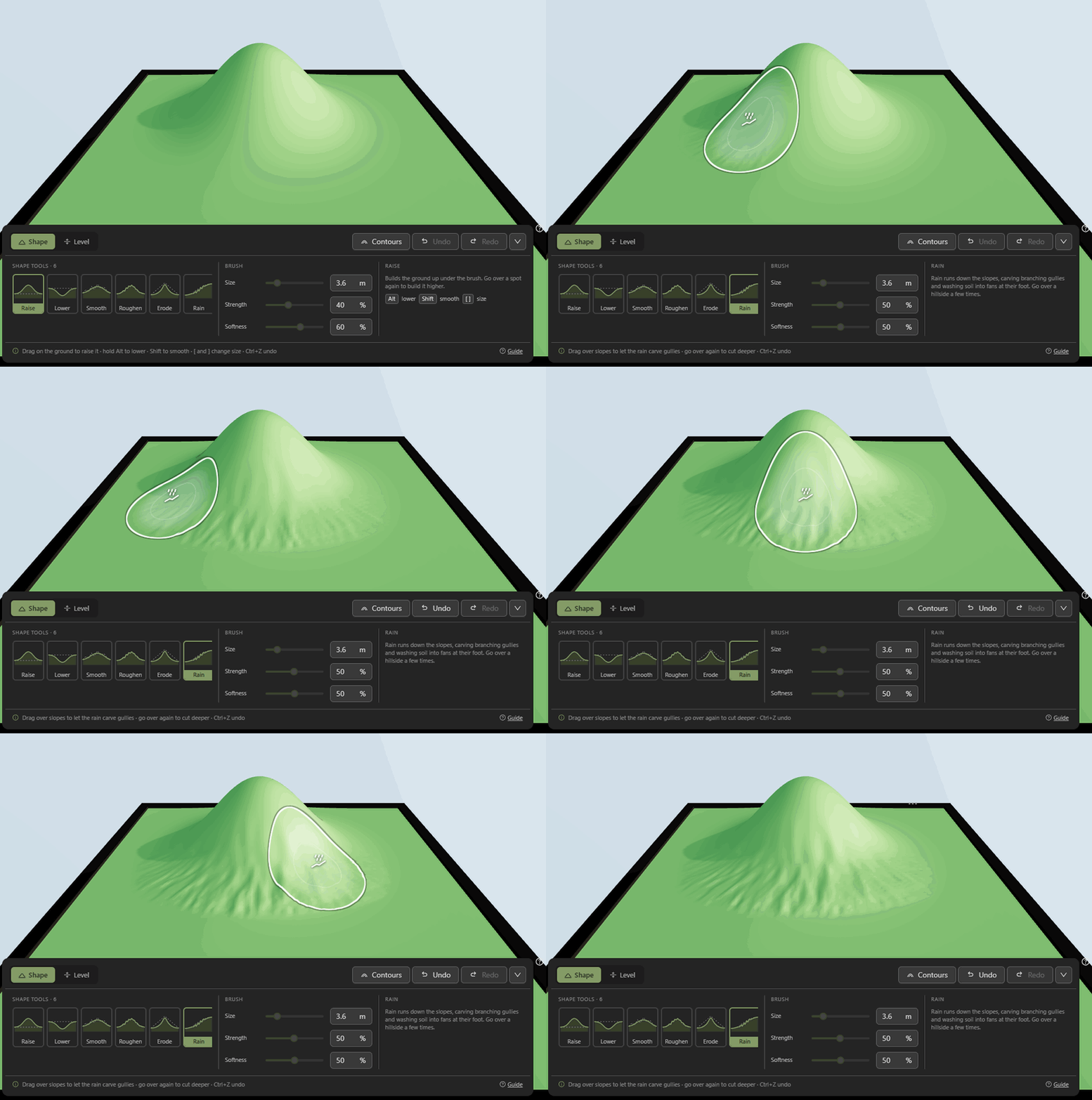
- Rain runs water down the slopes under the brush. It cuts gullies where the water speeds up and leaves the soil in fans where the slope eases.
- Go over a hillside a few times: each pass cuts the gullies deeper. A bigger brush makes longer gullies.
- On flat ground it does nothing: the water has nowhere to run.
Level ground
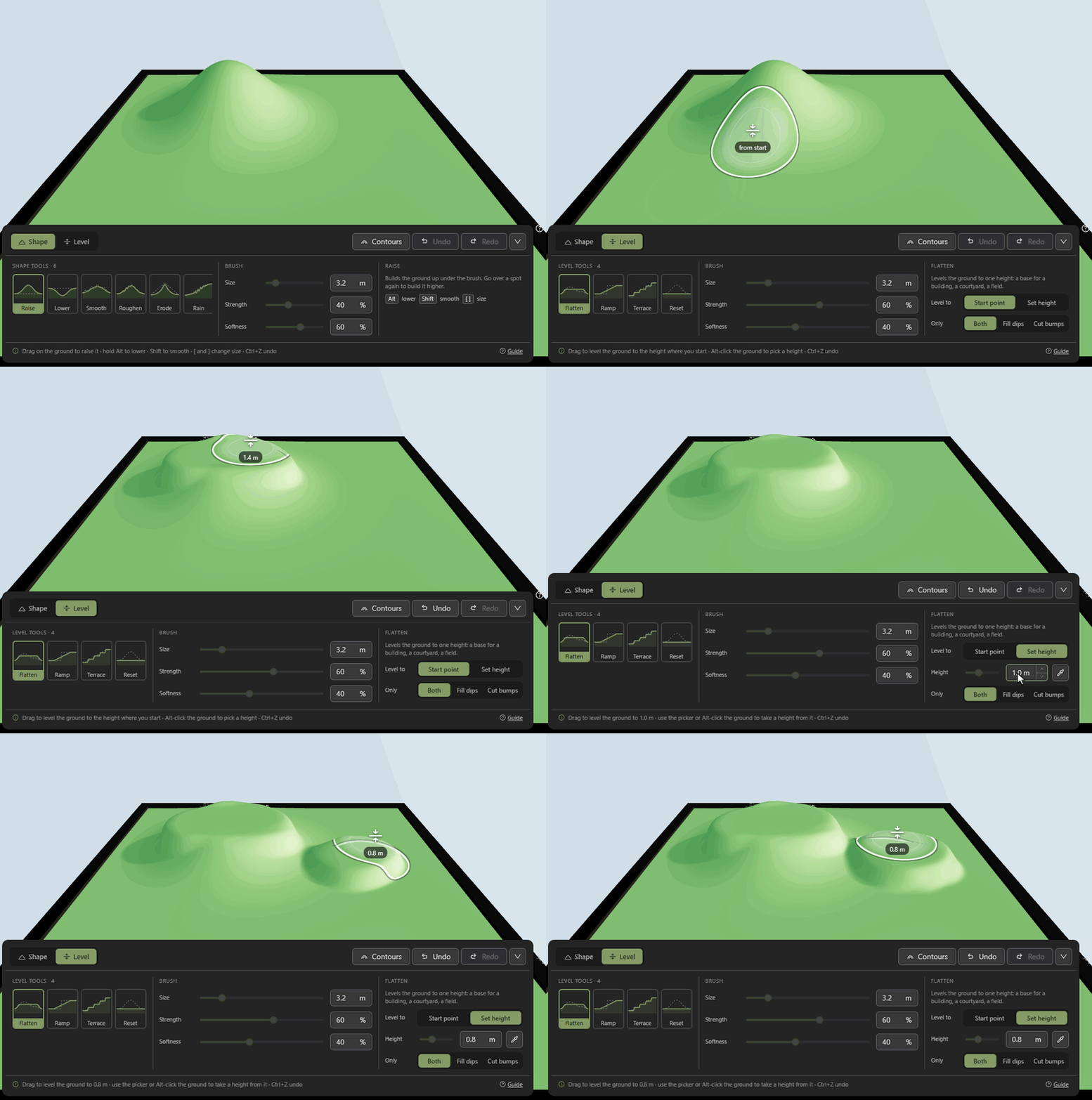
- Flatten levels the ground under the brush: a base for a building, a courtyard, a field.
- Level to: Start point uses the height where you start dragging. Set height uses the height you choose.
- To take a height from the ground, click the picker and then the ground, or Alt-click the ground.
- Only: Fill dips just raises low spots, and Cut bumps just lowers high ones. Useful for a plateau with cliff sides.
Ramps and terraces
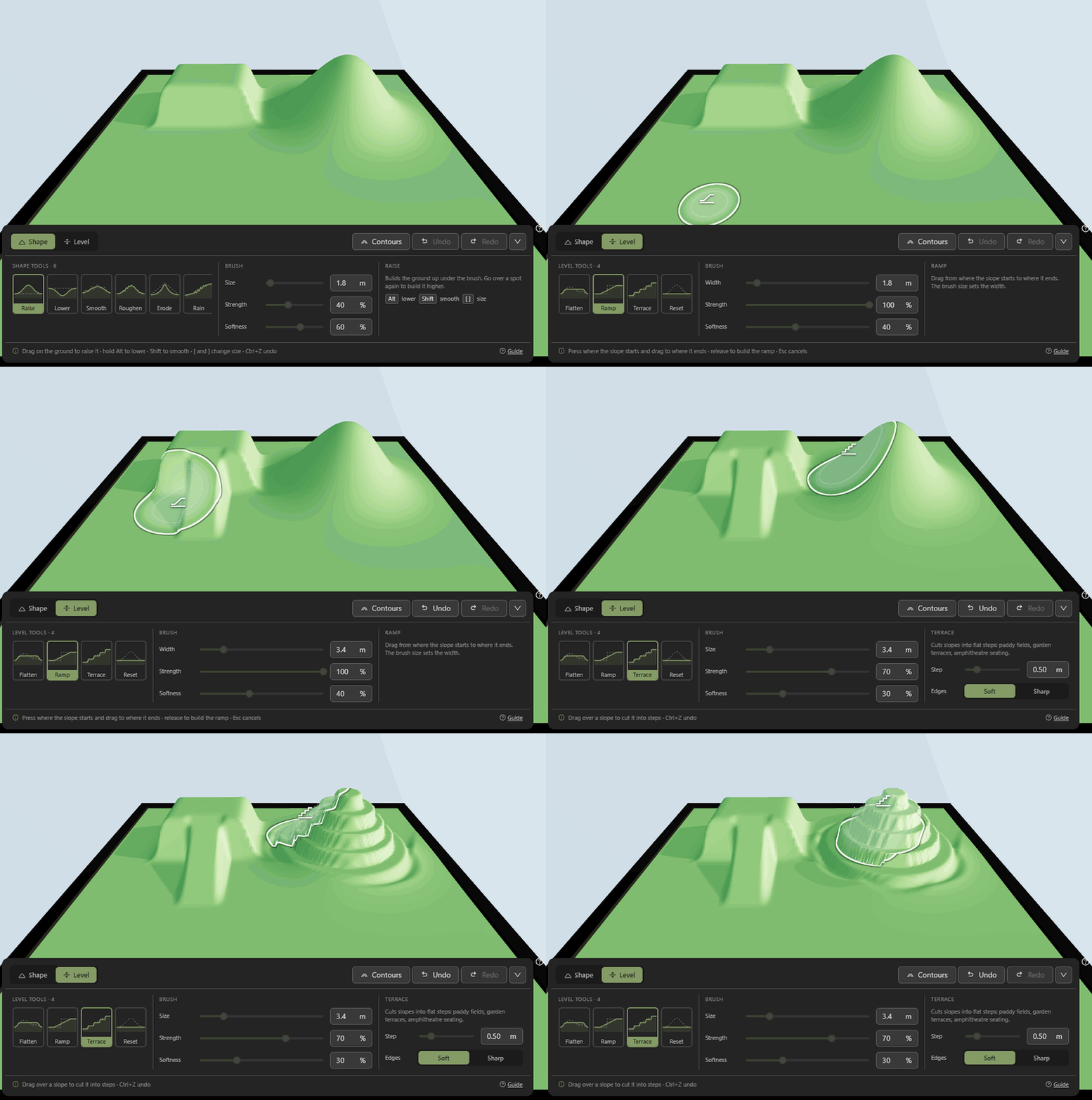
- Ramp: press where the slope starts, drag to where it ends, and let go. The ramp's width is the brush size. Press Esc before letting go to cancel.
- Terrace: drag over a slope to cut it into flat steps. Step sets each step's height, and Edges makes them soft or sharp.
Undo and start again
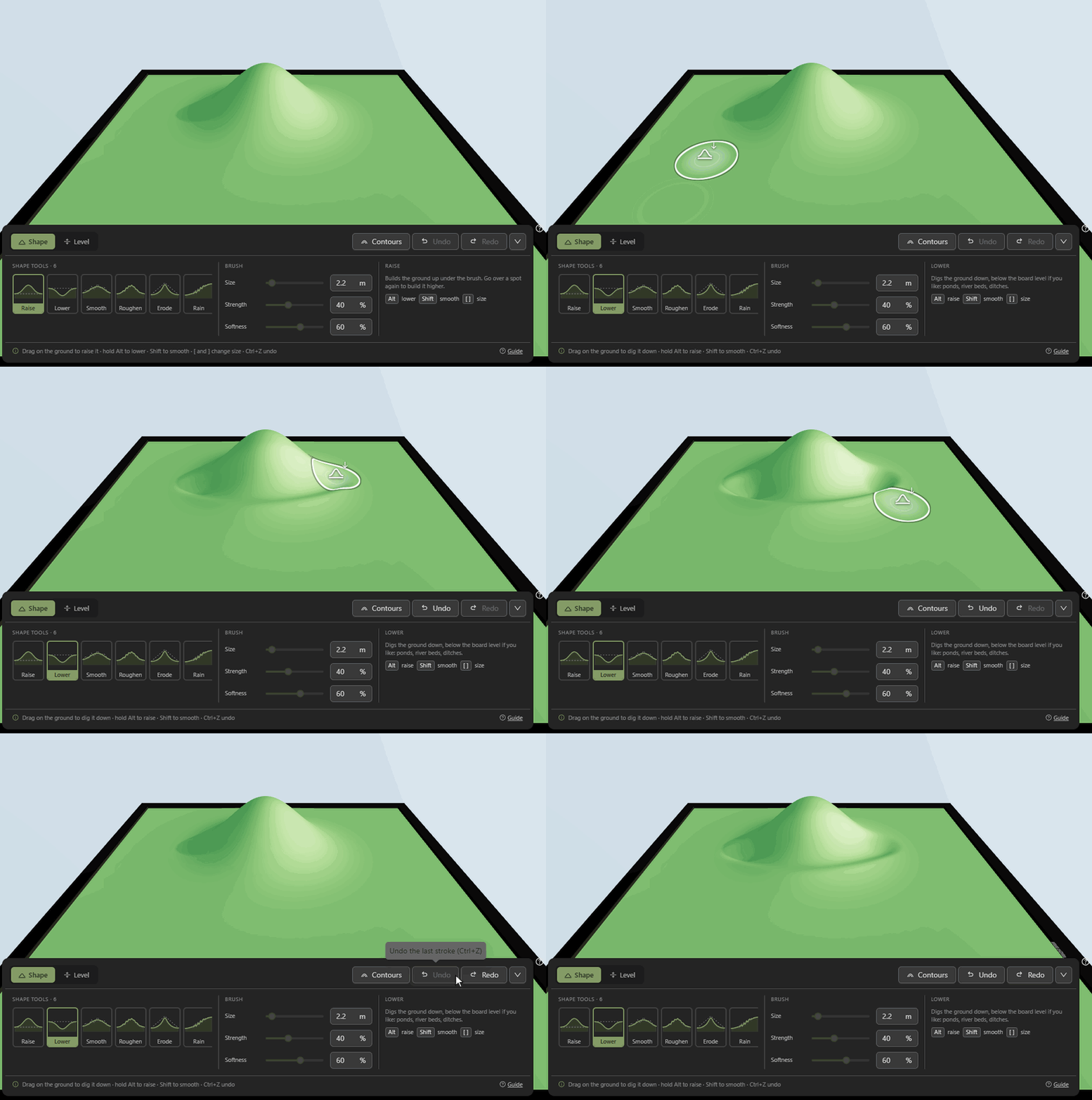
- Undo and Redo at the top of the panel, or Ctrl+Z and Ctrl+Shift+Z. Each stroke is one step.
- Reset brings the ground back to board level where you brush. Reset the whole terrain… flattens everything, and can be undone too.
- Contours draws height lines on the ground, to see how high things are while you sculpt.
On a phone or tablet
- Drag with one finger to sculpt.
- Two fingers move the camera. Putting a second finger down mid-stroke cancels the stroke.
- Picking a tool folds the panel down to a small bar. Tap its arrow, or drag the bar up, to open it again.
Controls
| Drag the ground | Sculpt |
|---|---|
| Drag the sky | Turn the camera |
| Right drag | Move the camera |
| Scroll | Zoom in and out |
| Alt | Swap Raise and Lower; Alt-click picks a Flatten height |
| Shift | Smooth with any tool |
| [ and ] | Smaller and bigger brush |
| Esc | Cancel a ramp |
| Ctrl+Z | Undo a stroke |
| Ctrl+Shift+Z or Ctrl+Y | Redo |
Tips
- Sculpt first, then paint. Materials follow the hills.
- Trees and walls settle onto the ground as you sculpt under them.
- Lower digs up to 5 m below the board, deep enough for the ponds and river beds in the water guide.
- Sculpt, Paint and Water share one undo: Ctrl+Z steps back through all three in order.
More guides
Ready to try it? Open the editor.